· 3 min read
Martijn Smit

We're making a few changes to WhatPulse Leagues, starting this week. The final sprint is now exactly 48 hours, results now lock on Monday afternoon instead of at midnight, and Pulse Score has a new name: League Score. Here's what's changing and why.

The final sprint is now 48 hours​

The final sprint used to start on Friday at 18:00 CET. It now starts at midnight between Friday and Saturday, so it covers exactly the weekend. As before, rival scores are hidden during the sprint while positions stay live. You'll know where you stand, just not by how much.

Results now lock on Monday at 14:00 CET​

Until now, a round was finalized right after Sunday ended in Europe. That was too early for some players.

The WhatPulse app sends your stats in the background, and they don't always arrive straight away. A computer might have been offline for a while, or a slow connection might delay the upload. Stats from the last hours of the week could reach us after the round was already locked, and they never counted.

To fix this, every app now has until Monday 14:00 CET to send its stats for the week. Then the results lock.

To be clear about what this means:

  • Only Monday to Sunday counts. The extra time is only for stats from the week that just ended to arrive. Nothing you do on Monday counts toward the previous round.
  • Monday's activity counts toward the new round. That's how it always worked, and it still does, even before your new group appears.
  • Your week follows your own computer's clock. It runs from Monday to Sunday in your local time, so every timezone gets the same seven days.

What you'll see on Monday morning​

Between Sunday midnight and Monday 14:00 CET, your league is in its photo finish. Scores stay hidden, the standings are marked as provisional, and a countdown shows when the results lock. Positions can still change as late stats arrive.

At 14:00 CET your results are final. Promotions, relegations and your new group arrive together, followed by your weekly email.

Pulse Score is now League Score​

The name Pulse Score caused confusion. It sounded as if the score came from your pulses, but it doesn't. It's calculated from the hourly stats the WhatPulse app records, the same data behind your overview and productivity dashboards.

So we've renamed it League Score. Only the name changes; the calculation stays the same:

▎ League Score = keys + clicks × 3

The same goes for your existing scores, ranks and history. If you show your score on your profile, you can now use %LeagueScore%.

Why your score doesn't change when you pulse​

This is the question we hear most. Your League Score isn't updated the moment you pulse. Leagues are recalculated once an hour, on the hour, from the stats your app has sent. New activity shows up at the next update. Your league page shows when that is.

In short​

whatBeforeNow
Final sprint startsFriday 18:00 CETSaturday 00:00 CET
Results lockSunday midnightMonday 14:00 CET
Activity that countsMonday to SundayMonday to Sunday (unchanged)
Score namePulse ScoreLeague Score

The full rules are on the Leagues page (https://whatpulse.org/leagues). Good luck this weekend.

· 10 min read
Martijn Smit

Abstract keyboard practice dashboard with colorful unlabeled keys and progress shapes

The best typing website is the one that helps you practice consistently and verify whether your real keyboard habits improve. A one-minute typing test can measure speed, but better practice also tracks accuracy, comfort, mistake patterns, and whether normal computer use changes afterward. Use typing websites for drills, then compare the results with your daily keyboard activity in WhatPulse.

That last part matters. A fast test score feels good, but the useful question is whether you type more comfortably during work, games, school, chat, code, or writing. The sites below cover quick checks, lessons, repetition, custom text, races, and long-form stamina. Pick the site that matches your goal, then use measurable computer activity to keep yourself honest.

What makes a typing website useful?​

A useful typing site gives you a clear exercise, immediate feedback, and enough variety to return tomorrow. The site does not need every feature. It needs to answer a few practical questions.

Can you see words per minute and accuracy separately? Does it show which keys or words cause mistakes? Can you change duration, punctuation, capitalization, or text difficulty? Does it support your keyboard layout?

That is where pairing practice with self-tracking helps. WhatPulse can show keyboard activity over time in the WhatPulse app, while the public stats pages show broader activity patterns. If you are starting from scratch, install the client from WhatPulse downloads, practice normally for a week, and compare daily totals.

Top typing websites by practice goal​

WebsiteBest fitWhat to watchUseful tracking question
MonkeytypeCustom speed testsAccuracy settings, punctuation, test lengthDo longer tests stay accurate?
KeybrWeak-key practiceLetter-by-letter drillsAre problem keys fading over time?
TypingClubStructured lessonsLesson progression and formCan you practice daily without rushing?
Nitro TypeCompetitive motivationRace pace and accuracy under pressureDoes competition cause sloppy typing?
10FastFingersQuick benchmark testsShort burst speedIs warm-up speed different from normal typing?
TypeRacerReal text racesSentence flow and pressureCan you keep accuracy with natural text?
RatatypeBasics and certificatesBaseline lessonsIs form improving before speed?
Typing.comClassroom-style practiceBeginner lessons and reportingCan you build a habit for several weeks?
ZTypeGame-like practiceVisual pressure and reactionDoes a game format help you return?
TypelitBook-based practiceLong passagesCan you type steadily beyond one minute?
TypeTest.ioClean modern testsFocused speed, accuracy, and account trackingDoes a simple test make repeat practice easier?

This table is a starting point, not a universal ranking. A programmer practicing punctuation needs a different site than someone learning home-row basics. A gamer may enjoy pressure-based practice. A writer may get more value from long passages that reveal fatigue.

1. Monkeytype for customizable speed tests​

Monkeytype lets you change the test instead of accepting a single default. You can practice common words, punctuation, numbers, quotes, longer durations, and different layouts. That flexibility makes it useful for people who already type regularly and want cleaner measurements.

Use it when you want to compare settings. Run a 30-second, 60-second, and two-minute test. If your short score is high but the longer test drops sharply, the issue may be rhythm, accuracy, or hand tension rather than raw keyboard familiarity.

Track the boring details. In WhatPulse, compare normal keyboard activity on practice days with non-practice days. If a test session adds thousands of keystrokes but your real work still feels clumsy, change the practice text instead of chasing another personal record.

2. Keybr for weak-key repetition​

Keybr focuses on adaptive typing practice. It introduces letters gradually and pushes you toward the keys that need work. This can feel slower than a speed test, which is useful when your goal is to remove friction from specific parts of the keyboard.

Use Keybr if you make repeat mistakes with certain letters, alternate layouts, or newly learned touch-typing habits. Speed tests can hide weak keys because you compensate with familiar words. Letter-focused drills make those gaps harder to ignore.

Pair it with a weekly review. Look at your WhatPulse keyboard activity, then ask whether your practice volume was enough to matter. A few careful sessions beat one giant session that leaves your hands tired. The mouse and keyboard tracker guide explains how input data can support that kind of review.

3. TypingClub for structured lessons​

TypingClub works well for people who want a curriculum. It is useful for beginners, students, or anyone rebuilding fundamentals after years of improvised typing. Lessons give you a sequence, so you spend less time deciding what to practice.

Lesson completion can look like progress even when accuracy suffers, so treat progress bars as one signal and comfort as another.

4. Nitro Type for competitive practice​

Nitro Type turns typing into races. Competition can make practice easier to start and harder to stop. It is a good fit if you need energy, streaks, and a reason to repeat drills.

Pressure reveals habits that calm tests miss. Some people type faster in races. Others make more mistakes because they chase the race instead of the next word. Watch accuracy closely. A lower speed with fewer errors may be more useful than a frantic win.

If competitive practice creates long sessions, use WhatPulse to spot the change. A game-like typing site can blur into regular computer time. Uptime and input totals help separate a useful session from another “one more race.”

5. 10FastFingers for quick benchmarks​

10FastFingers is built for fast benchmark checks. It is useful when you want a simple words-per-minute snapshot without much setup. Short tests make it easy to repeat the same measurement over time.

Treat it like a thermometer, not a training plan. A quick benchmark can show whether you are warmed up, distracted, or improving across weeks. It will not teach form by itself.

For cleaner comparisons, test at the same time of day and use the same language setting. Then compare your typing website score with broader computer activity. If a week contains heavy writing, coding, or chat, your hands may already have done plenty of work before the benchmark starts.

6. TypeRacer for natural text under pressure​

TypeRacer uses real text snippets and races against other people. This helps practice flow, capitalization, punctuation, and sentence rhythm. Natural text feels closer to writing and coding than random word lists.

Use TypeRacer when you want to see how well accuracy survives real sentences. Random word tests reward pattern recognition. Natural passages force you to deal with commas, quotes, names, and uneven word lengths.

If your goal is practical typing, natural text matters. The Microsoft Windows keyboard shortcuts documentation also shows how much keyboard efficiency depends on command habits, not only alphabetic speed.

7. Ratatype for basics and certificates​

Ratatype combines lessons, tests, and certificates. It suits learners who want a clear baseline and a tidy way to show progress. The certificate angle can help if you need a simple external proof of typing speed.

Use it for fundamentals. If you are relearning touch typing, start with form and accuracy before chasing speed. Certificates are useful only when the underlying habit holds up during normal work.

This is another place where WhatPulse can keep the story grounded. A certificate records a test result. Your activity history shows whether keyboard use stayed consistent after the test.

8. Typing.com for beginner and classroom practice​

Typing.com is a broad, lesson-heavy platform with beginner-friendly practice. It works well for schools, families, and people who want guided exercises instead of raw benchmark tests.

The best use case is habit building. Short daily lessons can be easier to maintain than occasional intense practice. If you are helping someone else learn, progress reports and predictable exercises reduce friction.

Use a simple checklist: practice for a set time, stop when accuracy drops, review mistakes, and take a break. Apple’s Mac keyboard shortcuts guide is worth bookmarking because everyday keyboard confidence often comes from navigation as much as text entry.

9. ZType for game-like repetition​

ZType turns typing into an arcade-style game. It is useful when standard drills feel too dry. The visual pressure encourages quick recognition and repeated attempts.

Use it for variety, not your only measurement. Game mechanics can make you faster at that game without improving longer writing sessions. Keep one neutral benchmark in your rotation so you can compare progress.

10. Typelit for long-form typing stamina​

Typelit uses books and long passages for practice. It is useful for writers, students, and anyone who wants to improve sustained typing rather than short bursts.

Long-form practice exposes fatigue. Your first minute may look fine while your tenth minute tells the real story. Watch accuracy, comfort, and repeated corrections.

If your keyboard has seen years of heavy use, hardware also enters the picture. The keyboard lifespan guide explains why total keystrokes are useful context for people who care about switches, durability, and replacement timing.

11. TypeTest.io for a clean modern typing test​

TypeTest.io keeps the loop simple: start a test, watch speed and accuracy, and return often enough to build a baseline. It is a good last stop when you want a focused typing test without turning practice into a setup project.

Use it for repeatable checks beside your WhatPulse keyboard history. One clean test shows the drill result; your WhatPulse activity shows whether practice fits real computer use.

How to choose the right typing site​

Start with the problem you actually have.

  • Choose Monkeytype or 10FastFingers if you want fast benchmark checks.
  • Choose Keybr if certain keys keep causing errors.
  • Choose TypingClub, Typing.com, or Ratatype if you want lessons and structure.
  • Choose TypeRacer or Typelit if you want natural text or longer passages.
  • Choose TypeTest.io if you want a clean repeatable benchmark.
  • Choose Nitro Type or ZType if you need motivation from games or competition.

Rules like that prevent taking fifteen tests, keeping the best score, and calling it science.

How to track whether practice works​

Use typing websites for the drill and WhatPulse for the background trend. Before you start, record a baseline week. Note average daily keystrokes, main computer activities, and any obvious discomfort. After two or three weeks of practice, compare the same signals.

Look for three changes.

  1. Your typing test accuracy improves at the same or higher speed.
  2. Your normal keyboard-heavy days feel less tiring.
  3. Your daily activity pattern stays sustainable instead of spiking during practice and collapsing afterward.

You do not need perfect data. You need comparable data. Keep the same benchmark site, test length, and review schedule. That creates a cleaner picture than switching sites every time a score disappoints you.

Final takeaways​

The top typing websites solve different practice problems. Some measure speed, some build fundamentals, some make repetition less dull, and some test whether you can keep accuracy under pressure. Choose based on your current bottleneck, then track progress with the same benchmark and a simple activity review.

If you want the practice to connect with real computer use, pair your typing site results with WhatPulse. Speed tests show what happened during a drill. Your keyboard activity history shows how typing fits into the rest of your day.


· 9 min read
Martijn Smit

Mouse distance statistics measure how far your pointer travels across your screens during normal computer use. A typical day can include thousands of small pointer movements, but the useful question is not the exact distance. It is what the pattern says about your setup, work style, games, and habits. Mouse travel rises when you switch windows often, work across large displays, edit visual material, browse densely packed tools, or play pointer-heavy games. Tracking it over time gives you a practical baseline for comparing days, devices, and routines.

For WhatPulse users, mouse distance sits beside clicks, scrolls, keys, uptime, application use, and website activity. That combination turns a curiosity metric into a readable picture of how you actually use your computer.

What mouse distance statistics measure​

Mouse distance is the accumulated movement of your pointer. If your cursor moves from one side of the screen to the other, that movement adds to the total. Over a day, those tiny paths accumulate into meters, kilometers, or miles depending on your settings.

The number is shaped by three things: your physical mouse movement, your pointer speed settings, and your screen layout. A user with two large monitors may record more pointer travel than someone on a single laptop display, even if they spend the same amount of time at the computer. A gamer with low sensitivity may move their hand farther on the desk, while the on-screen pointer distance depends on the game and input mode.

That is why mouse distance statistics work best as a personal trend, not a universal ranking. Compare your Monday to your Friday. Compare a coding day to a design day. Compare a normal gaming session to a marathon one. You will learn more from your own baseline than from someone else's total.

WhatPulse added mouse scrolls and distance in version 5.0, including per-application views and historical tracking. The release notes explain the feature in WhatPulse 5.0: Mouse Scrolls, Distance, oh my, and the broader setup advice in Mouse and Keyboard Tracker: A Practical Setup Guide shows how to treat input data as a habit signal.

Why mouse travel varies so much​

Two people can spend eight hours on a computer and produce very different mouse distance totals. The difference often comes from workflow design rather than effort.

A developer who lives in a terminal and editor may produce more keystrokes than mouse movement. A designer moving objects, panels, and timelines may create long pointer paths. A spreadsheet user can generate bursts of precise movement between cells, menus, and filters. A gamer may record rapid movement during matches and almost none while waiting in a lobby.

Screen size also matters. A 4K display gives the pointer more pixels to cross. Multiple monitors add long transitions between work areas. High pointer speed can make the cursor cover more screen distance with less hand movement. Low pointer speed can make a physical desk workout without always increasing on-screen distance in the same way.

Mouse distance also reflects software layout. Dense interfaces with small targets encourage more corrections. The interaction principle behind that is described by Fitts's Law, which explains how target size and distance affect pointing time. In plain terms, small distant buttons cost more movement and attention.

A practical way to read your own numbers​

Start by collecting at least two weeks of data. One day is trivia. Two weeks starts to show rhythm. A month is better if your work changes by weekday, project phase, or gaming schedule.

Use this table to interpret mouse distance without pretending the number explains everything:

Pattern you seeLikely explanationWhat to check next
High distance, high clicksInterface-heavy work, gaming, browsing, design, or spreadsheet useCompare applications and websites for the same day
High distance, low clicksLarge screens, window switching, reading, or pointer wanderingCheck uptime and active application patterns
Low distance, high keysWriting, coding, terminal work, chat, or keyboard-first workflowsCompare with keyboard heatmap and key totals
Sudden spike on one dayGaming session, design sprint, support shift, or unusual browsingReview the day by application and time block
Gradual increase over weeksNew monitor, new app layout, changed job role, or habit driftCompare before and after the change
Weekend totals exceed weekdaysGaming, hobbies, browsing, or household adminSeparate leisure sessions from work sessions

The key is to pair mouse distance with context. WhatPulse's mouse click statistics article covers a related input signal, while Computer Activity Baseline: What's Normal? explains why a personal baseline beats a generic benchmark.

Mouse distance and ergonomics​

Mouse travel can hint at friction in your setup, but it should not replace ergonomic judgement. A high total does not automatically mean injury risk. A low total does not mean your workstation is comfortable. The better signal is a pattern that matches discomfort, fatigue, or repetitive strain.

If your mouse distance rises on days when your wrist or shoulder feels worse, look at the physical setup first. The UK Health and Safety Executive's display screen equipment guidance recommends arranging equipment so you can work comfortably and change posture. The Canadian Centre for Occupational Health and Safety also covers mouse placement, reach, and workstation layout.

A few practical checks help:

  1. Keep the mouse close enough that your arm is not reaching all day.
  2. Adjust pointer speed so common movements do not require exaggerated hand travel.
  3. Put frequent controls closer together when software lets you customize panels.
  4. Use keyboard shortcuts for repeated actions that do not need pointing.
  5. Take short breaks when a high-movement task runs for hours.

Operating system settings matter too. Microsoft documents how to change mouse settings in Windows, including pointer speed and scrolling behavior. Small changes can make large movement patterns feel less clumsy.

What different users can learn​

Mouse distance statistics become more useful when you interpret them by role.

Developers may see low mouse distance during deep coding and higher totals during debugging, browser testing, issue triage, or design review. If mouse movement rises while keyboard activity falls, it may indicate more navigation and less production. That does not make the day worse. It gives the day a label.

Designers, video editors, and content creators often produce high mouse distance because their work depends on visual placement. For them, a high number may simply confirm the nature of the task. The useful comparison is between tools, projects, or days with different layouts.

Gamers can use mouse distance to separate play styles. A shooter session may show different movement from a strategy game, MMO, or idle game. Combine distance with clicks and session length to see whether a game is intensive, casual, or mostly social.

Remote workers can use mouse distance with application and website patterns to understand where attention went. A day full of meetings might show lower mouse travel but high uptime. A day spent hopping between documents, dashboards, and chat tools may show the opposite.

Keyboard enthusiasts can compare mouse distance against key totals. A keyboard-first setup usually lowers pointer use for common actions. If a new shortcut habit reduces mouse distance during repeated work, the data gives you proof beyond vibes. Vibes have a weak audit trail.

How to build a mouse distance baseline​

A baseline is a normal range for you. It should account for workdays, weekends, games, and unusual projects. Do not start with a target. Start with observation.

Use this checklist:

  • Track at least 14 days before drawing conclusions.
  • Mark unusual days, such as travel, sick days, all-day meetings, game nights, releases, or design deadlines.
  • Compare mouse distance with clicks, scrolls, keys, uptime, applications, and websites.
  • Split workdays and weekends before averaging.
  • Look for repeatable patterns by day of week or activity type.
  • Recheck the baseline after changing monitors, pointer speed, mouse hardware, or job role.
  • Treat spikes as prompts for review, not automatic problems.

WhatPulse's app helps because it puts input activity beside application, website, network, and uptime stats. You can also install or update the client from WhatPulse downloads if you want fresh data from the computer you actually use.

Common mistakes when comparing mouse distance​

The first mistake is comparing raw totals across people. That turns a personal metric into a scoreboard with bad rules. A triple-monitor designer and a laptop writer do different work on different surfaces.

The second mistake is treating mouse distance as productivity. Movement is activity. It may support output, but it can also come from searching, correcting, browsing, gaming, or fiddling with windows. Pair the number with application and website context before deciding what it means.

The third mistake is ignoring hardware changes. A new mouse, sensitivity setting, monitor, desk, or operating system setting can shift your totals. If your baseline changes overnight, check the setup before inventing a behavioral story.

The fourth mistake is focusing only on daily totals. Hourly patterns often explain more. A day with one intense design block can have the same total as a day of scattered window switching. The total is the headline. The timeline is the evidence.

A simple example​

Suppose your month shows three patterns. Mondays have low mouse distance and high keyboard activity because you write plans and code. Wednesdays have high distance, high clicks, and high website usage because you review dashboards and support tickets. Saturdays have shorter uptime but very high mouse movement because you play games.

None of those days is automatically good or bad. They are different shapes of computer use. Once you know the shapes, you can make targeted changes. You might move repeated support tools into a cleaner layout. You might add shortcuts for common dashboard actions. You might leave gaming alone because it is doing exactly what leisure should do: absorbing time in a measurable way.

The useful question​

Mouse distance statistics answer a surprisingly human question: what kind of computer day did I just have? The raw distance is fun, especially when it turns into kilometers over time, but the pattern matters more.

Use mouse distance as one layer in your activity history. Compare it with clicks, scrolls, keys, uptime, applications, and websites. Watch for changes after new hardware, new work, new games, or new habits. The result is not a perfect measure of effort. It is a practical record of how your hands moved through your digital life.

If you already use WhatPulse, check your mouse distance alongside your other input stats and build a baseline from your own history. If the number surprises you, good. Curiosity is the whole point.

· 5 min read
Martijn Smit

If you've ever looked at your global WhatPulse rank and calculated how many years it would take to catch the person at the top, you'll understand why I built Leagues. More than two decades of keys and clicks make for some impressive lifetime totals. They also make for a rather long head start.

WhatPulse Leagues are here. Your everyday computer activity now gives you a weekly competition: a small group of opponents, a promotion line to aim for, and a fresh round every Monday. Keep using WhatPulse and pulsing normally. Your keys and clicks do the rest.

WhatPulse Leagues: a fresh competition every week, with divisions from Bronze to Legend

· 5 min read
Martijn Smit

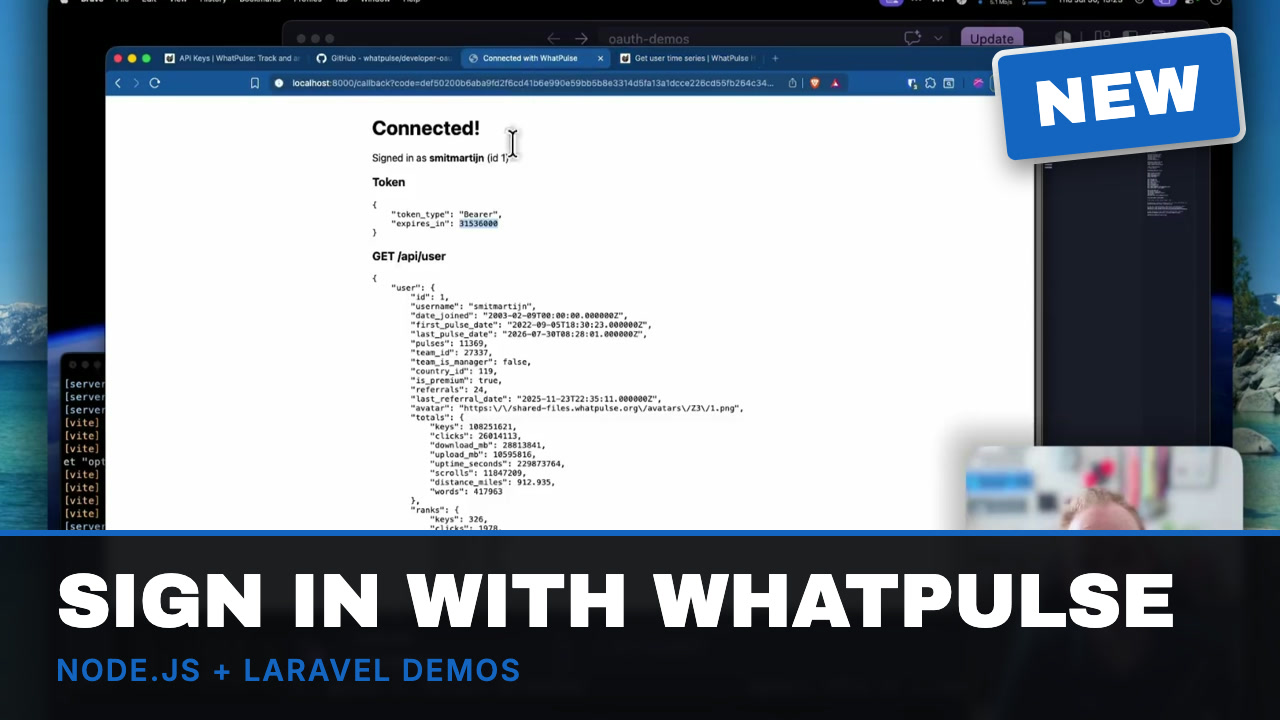
Until now, the WhatPulse API was mostly a personal thing. You created an API key, pointed a script or a dashboard at your own account, and that was that. Useful, but it stopped the moment you wanted to build something for other people.

That changes with OAuth applications. Any WhatPulse user can now sign in to your app, approve what it is allowed to see, and your app gets an access token to call the API on their behalf. It is the same authorization code flow you know from "Sign in with GitHub" or "Sign in with Google", so if you have done that before, you already know most of it.

Sign in with WhatPulse - OAuth demo apps in Node.js and Laravel